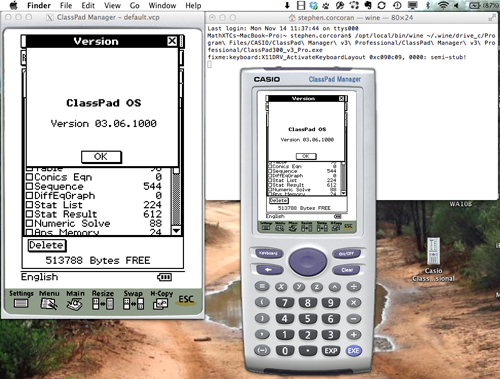
Using Wine to install Casio ClassPad Manager Pro on a Mac
STEP ONE
First step is to install Xcode - this is a free download from the App Store (Some of you will already have this installed). Requirements: Mac OS X 10.7 or later
STEP TWO
Next install MacPorts, it is an open source package manager. We will use this to install Wine.
After it has been installed open a terminal window and type
sudo port -v selfupdate
STEP THREE
Next we will configure Macports, once again open a terminal window and type or you could just CMD + C and then CMD + V from below.
echo export PATH=/opt/local/bin:/opt/local/sbin:\$PATH$'\n'export MANPATH=/opt/local/man:\$MANPATH | sudo tee -a /etc/profile
This command will ask for your password (local machine), enter this and it should return two lines that look like this,
export PATH=/opt/local/bin:/opt/local/sbin:$PATH
export MANPATH=/opt/local/man:$MANPATH
Next type the following command to allow Macports to know your processor type.
if [ `sysctl -n hw.cpu64bit_capable` -eq 1 ] ; then echo "+universal" | sudo tee -a /opt/local/etc/macports/variants.conf; else echo "not 64bit capable"; f
STEP FOUR
Now we will install Wine via Macports, at the terminal command line type
sudo port install wine
Enter your password when it asks and then be prepared to wait - this step will take a long time.
If you get an error message at this step that reads error: C compiler cannot create executables or Failed to locate 'make' in path, it means you forgot to install Xcode.
STEP FIVE
Next Step is to install Casio Class Pad on Windows (either another machine or use a VM Like Parallels or VMWare Fusion. Install Class Pad and update.
Then copy the C:\Program Files\CASIO directory to a USB Drive or Thumb Drive.
We need this for a trick later, which allows us to bypass the update process, thus allowing you to have a completely updated version of Class Pad.
(Version 3.06.1000)
STEP SIX
Copy to the desktop the ClassPad windows install file (32 bit, version 3.02) “setup.exe” and then at terminal type
cd /Users/
Ok lets install Class Pad using Wine.
wine setup.exe
This will install Class Pad onto your home drive ie /Users/
Enter your valid license key to activate your Class Pad - BUT DO NOT UPDATE USING THE UPDATER. This will not work and can break the install.
STEP SEVEN
Run ClassPad Manager Pro to test if this works, at the terminal type
/opt/local/bin/wine ~/.wine/drive_c/Program\ Files/CASIO/ClassPad\ Manager\ v3\ Professional/ClassPad300_v3_Pro.exe
Wait for a few seconds for X11 to start and up appears ClassPad Manager (Old Version), if this step fails grab output from terminal window including errors and visit http://www.winehq.org/
If this has worked close down X11 and proceed to the next step.
STEP EIGHT
Ok so now copy to your desktop the CASIO folder from your windows install.
Once done open up terminal and type. (Easy to copy this to Textedit, change username to yours then paste into the terminal window)
cp -R /Users/
Where
This updates your Class Pad to the same version as is on your PC install. Even though the Class Pad reports it to be the old version it is the new version, with all the updated features.
STEP NINE
Ok lets pretty this up a bit. Download the ClassPad App launcher, Open the dmg file and drag the icon to your desktop.
This saves you from having to use terminal all the time and automates the process. A terminal window will still open and but this can minimised.
Congratulations on setting up Casio Class Pad on your Mac.
Disclaimer:
This is open source software covered by GPL3 and as such use at your own risk.
Casio ClassPad Manager is commercial software that requires a licence key. By law you are allowed to use the licenced version of this software on any OS as long as you do not interfere with the original licenced software.
Note:
- This is a time consuming process and may require technical support from your IT department.
- You cannot perform firmware updates to a ClassPad 330 calculator from within Mac OS X.
- The screen capture function within ClassPad Manager will not work. Alternatively use the screen capture functions built into OS X.
Acknowledgement:
Karl Smith - Apple Engineer St Stephen’s School